
From open to first call in two minutes.
Eight short steps. Most days you only need the first four.
- 1Open Talkr
- 2Make a call
- 3Answer a call
- 4Text a lead
- 5Use it inside Chrome
- 6Run a campaign
- 7Automate the follow-up
- 8Read the numbers
Right now: the carrier connection is still being set up, so a live call or text shows a “no carrier” message. Everything else on these pages works today, and calling switches on the moment the carrier is connected.
Open Talkr
Go to the app in any browser, on a phone or a computer. There is no sign-in right now: you land straight on the dialer.
- On an iPhone, tap Share, then Add to Home Screen. It opens full-screen like a native app.
- On a computer, allow the microphone when the browser asks, or calls will have no audio.
- The green square by the phone button is your presence. Tap it to go away or come back.
Make a call
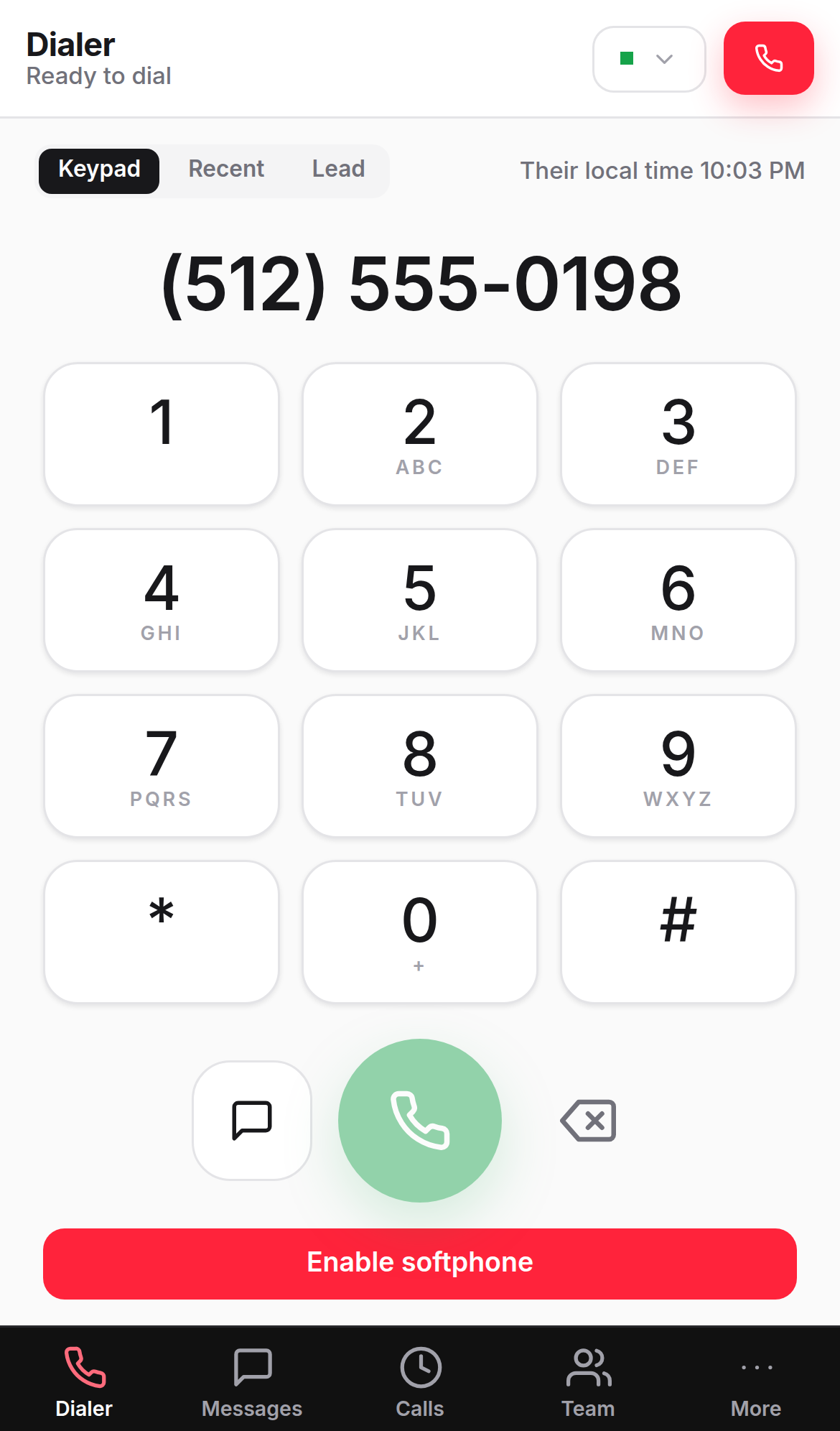
Open the Dialer tab. Type the number on the keypad, paste it, or pick it from Recent or Lead. Then press the green Call button.
- Letters are fine. Typing a vanity number or a name-like string is turned into digits.
- While on the call: mute, keypad, hold, speaker and transfer sit under the timer.
- When you hang up, pick a disposition and leave a note. That is what the next rep sees.
Answer a call
Incoming calls show a banner at the top of whatever page you are on, with the caller and the lead if we know them. Accept or decline.
- Calls ring the reps who are present, in the order set on the Team page, inside business hours.
- If nobody picks up, the caller goes to voicemail and the voicemail shows in Call history.
Text a lead
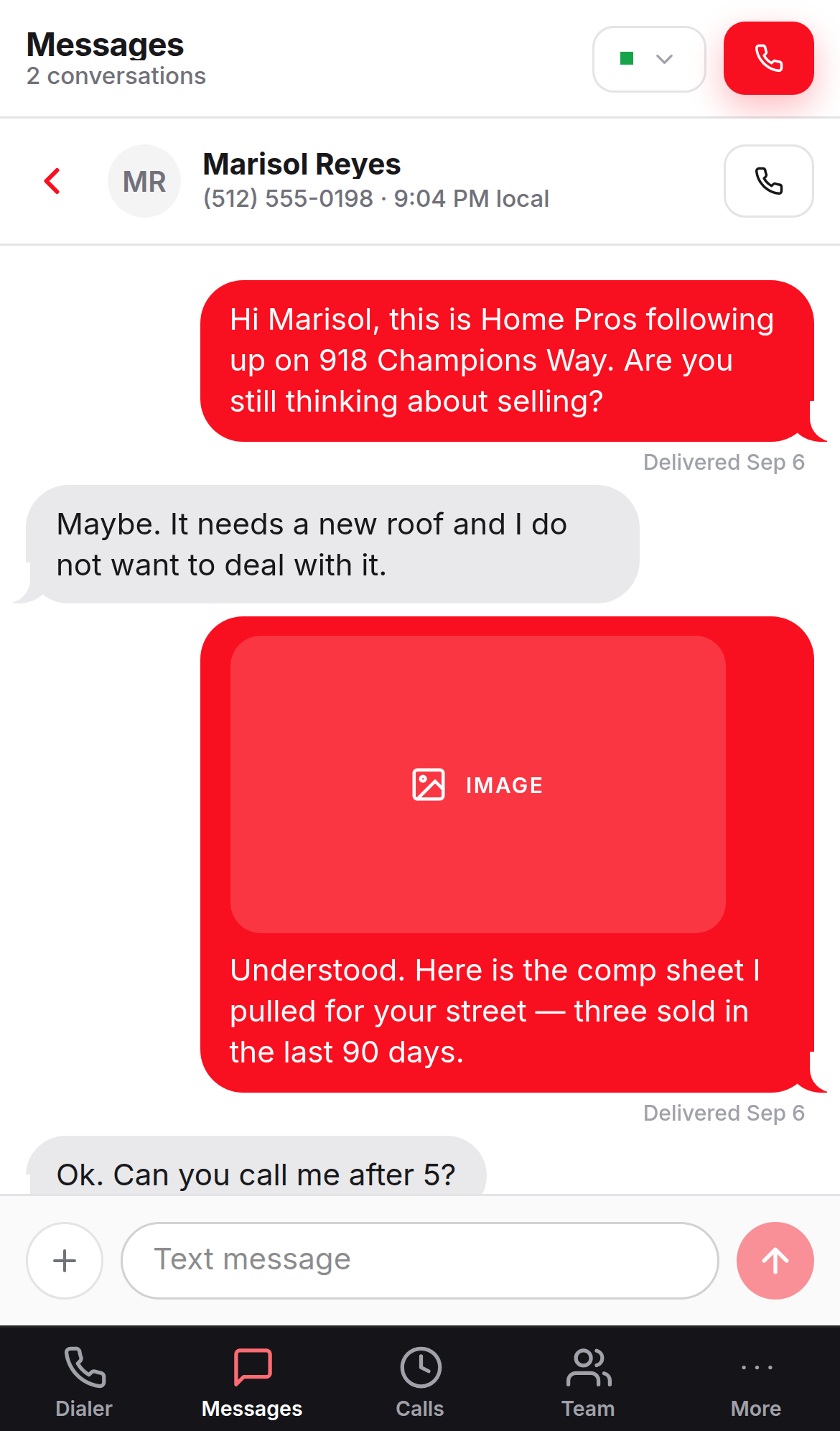
Open Messages. Pick a conversation, or start one with the plus button and a number. Type, or choose a template, then send.
- Everyone on the team sees the same thread, so nobody double-texts a lead.
- A lead who replies STOP is opted out automatically. Talkr will not let you text them again.
- The phone button in the thread header calls the lead from the same screen.
Use it inside Chrome
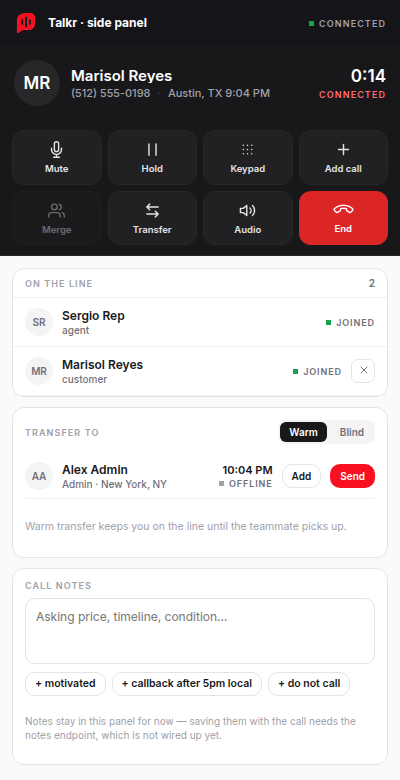
The Chrome extension puts the same phone in a popup and a side panel, so you can call and text from the CRM tab you are already on.
- Open chrome://extensions, switch on Developer mode, choose Load unpacked, and pick the talkr-voice dist folder.
- Pin Talkr to the toolbar. The popup is the dialer; the side panel opens during a call with the lead card next to it.
- The popup closes when you click away, but the call does not drop. It keeps running in the side panel.
Run a campaign
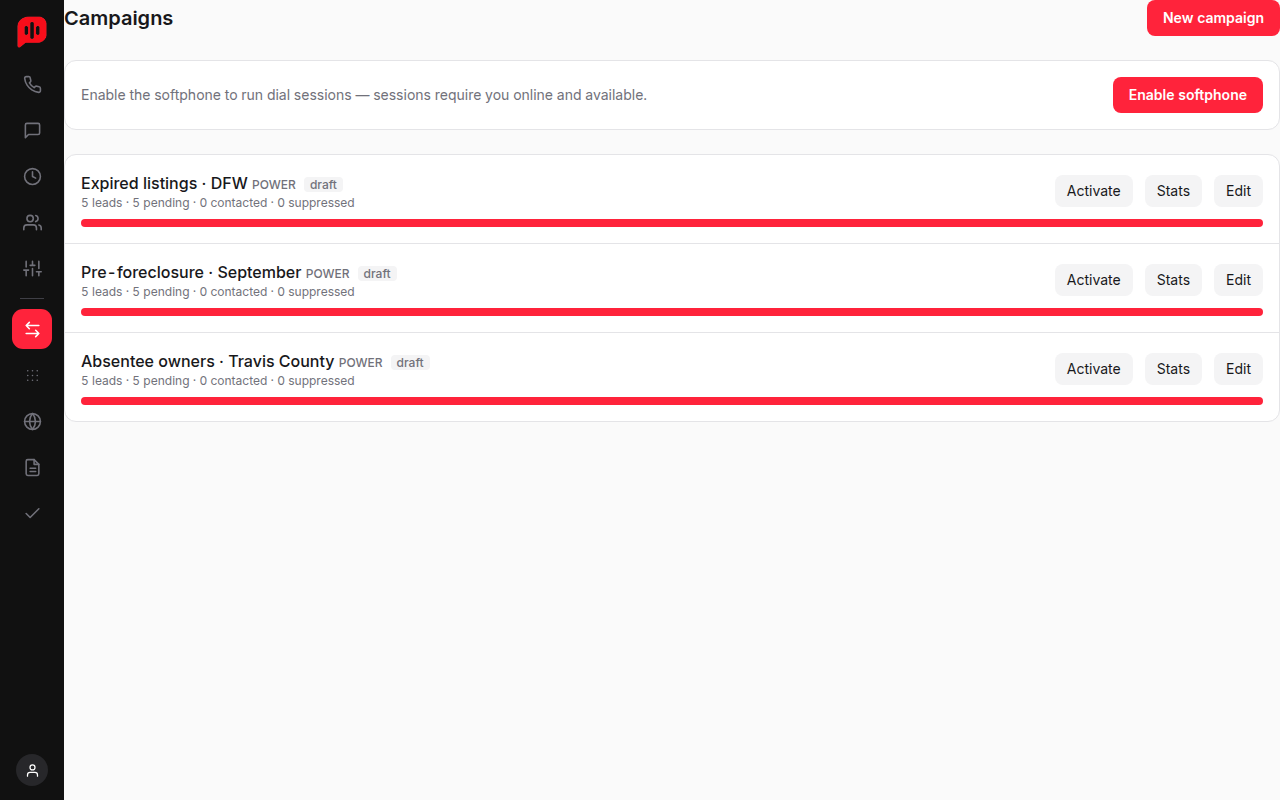
Open Campaigns from More, create one, and load the leads. Start a session and Talkr hands you the next lead each time you finish one.
- Preview mode shows the lead first; power mode dials as soon as you are ready.
- The disposition you pick decides the next attempt: no answer retries later, not interested drops the lead.
- Pause the session any time. Your place in the list is kept.
Automate the follow-up
Open Workflows from More. A workflow is a trigger, an optional condition, and one or more actions.
- Example: when a call ends with the disposition "Interested", create a task for tomorrow and text the lead a thank-you.
- Tasks land on the Tasks page for the rep who owns the lead.
Read the numbers
Reports shows calls, connects, talk time and outcomes by rep and by day. Floor shows who is on the phone right now.
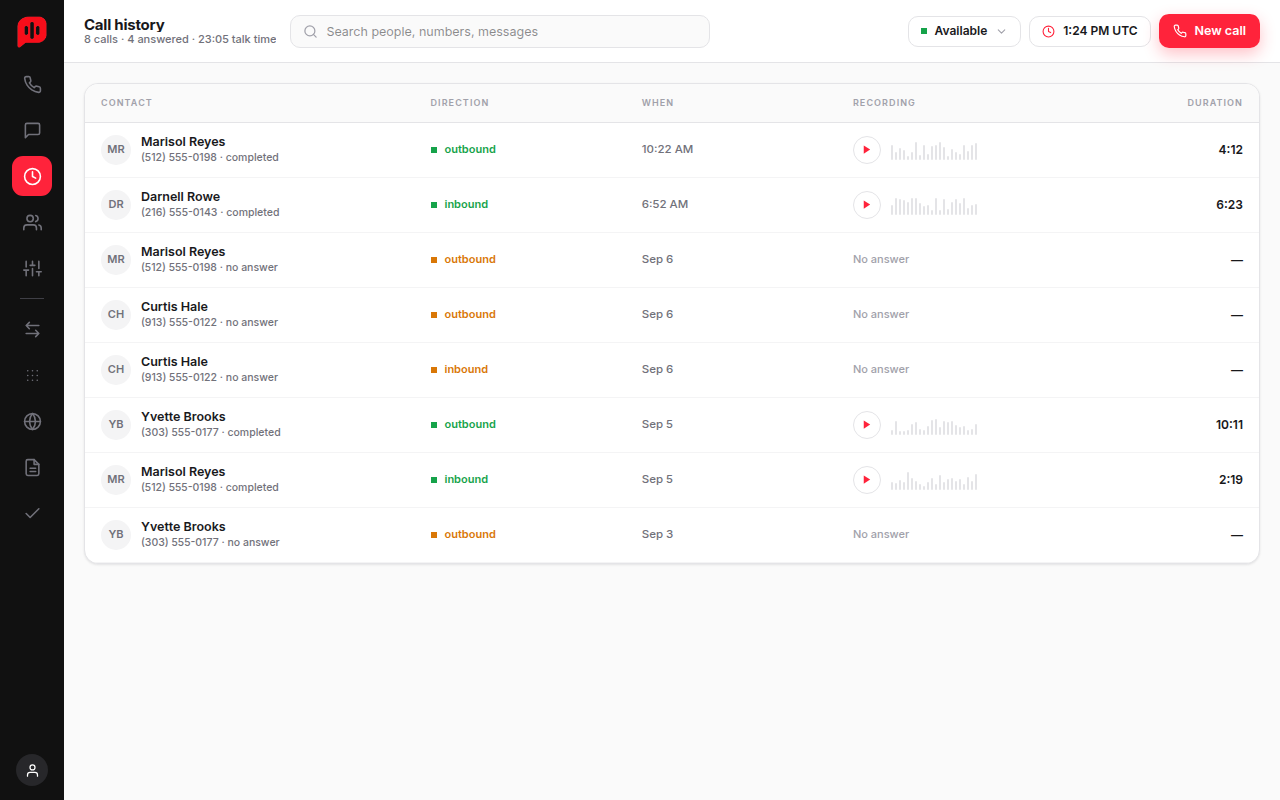
- Call history lists every call with its recording, notes and disposition.
- Costs shows what each call and text cost at the carrier.
Ready? Open the dialer.
Step one takes ten seconds. The rest you will pick up on the first call.